

Christmas & New Year’s Holiday Bundle
Christmas + New Year’s Party Games Bundles and the Ornament Cut File Pack. Limited-time price.
$27.99
Home / Cricut & cut files / Christmas Ornament Cut File Pack
About these cut files
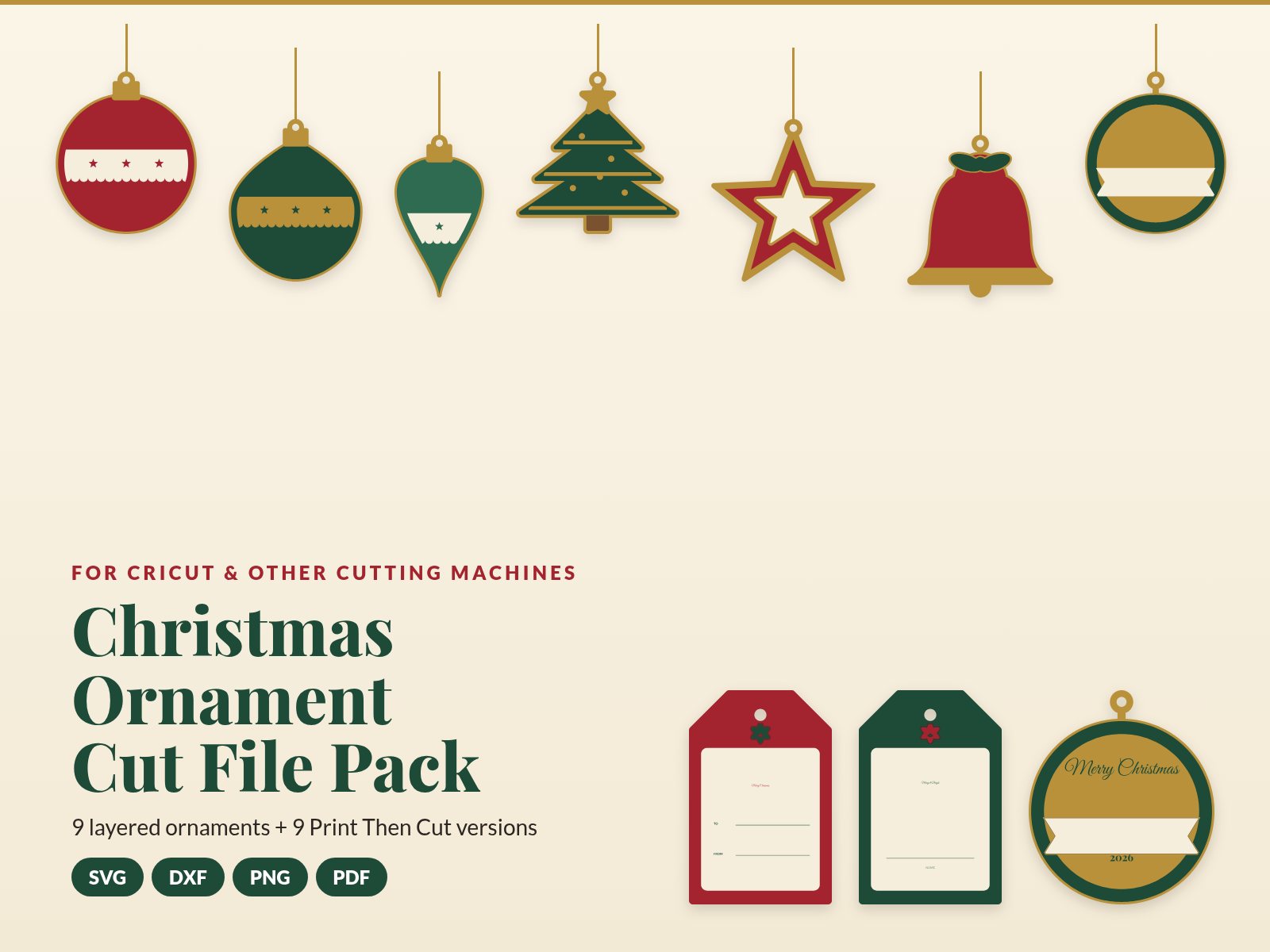
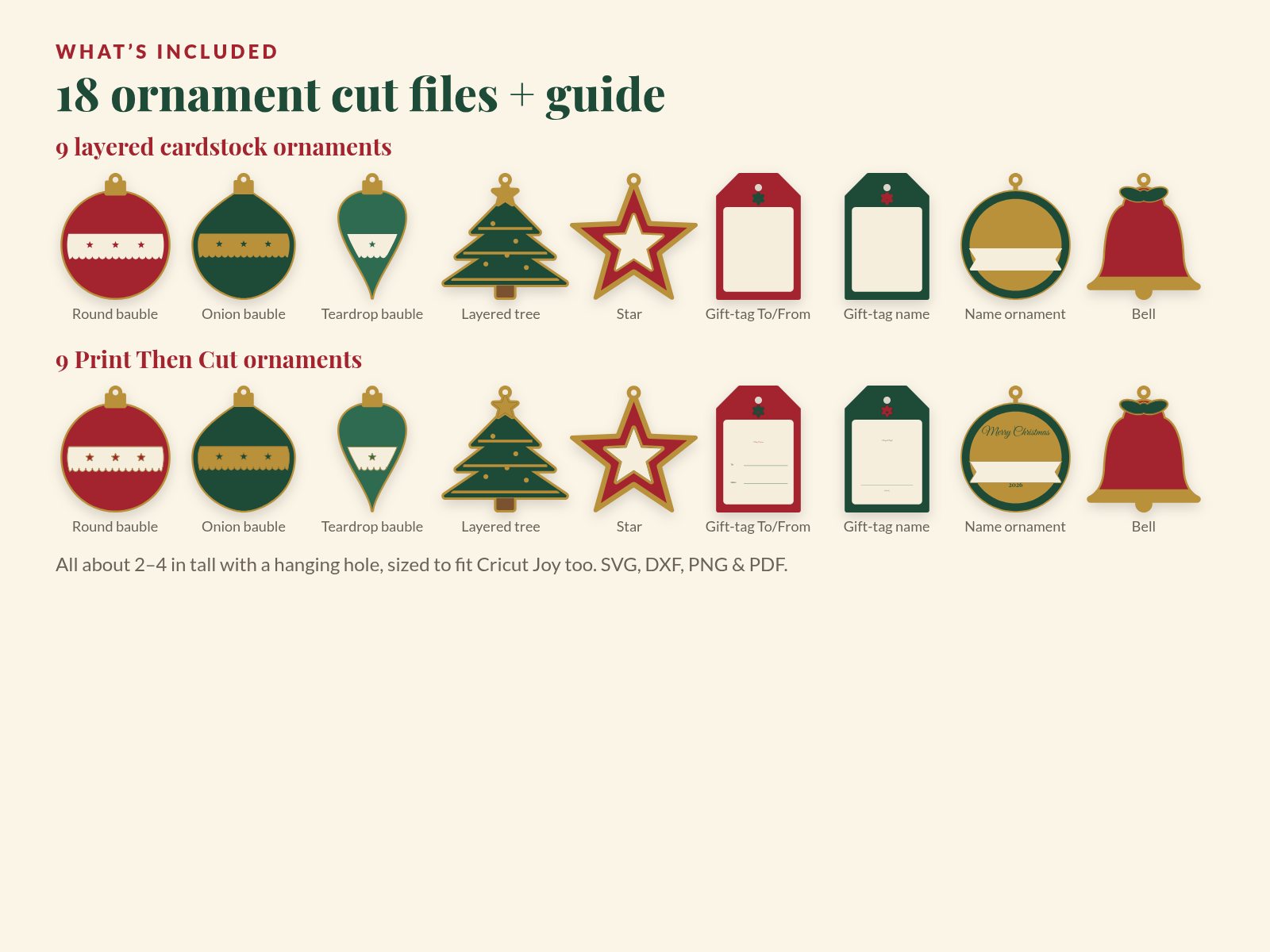
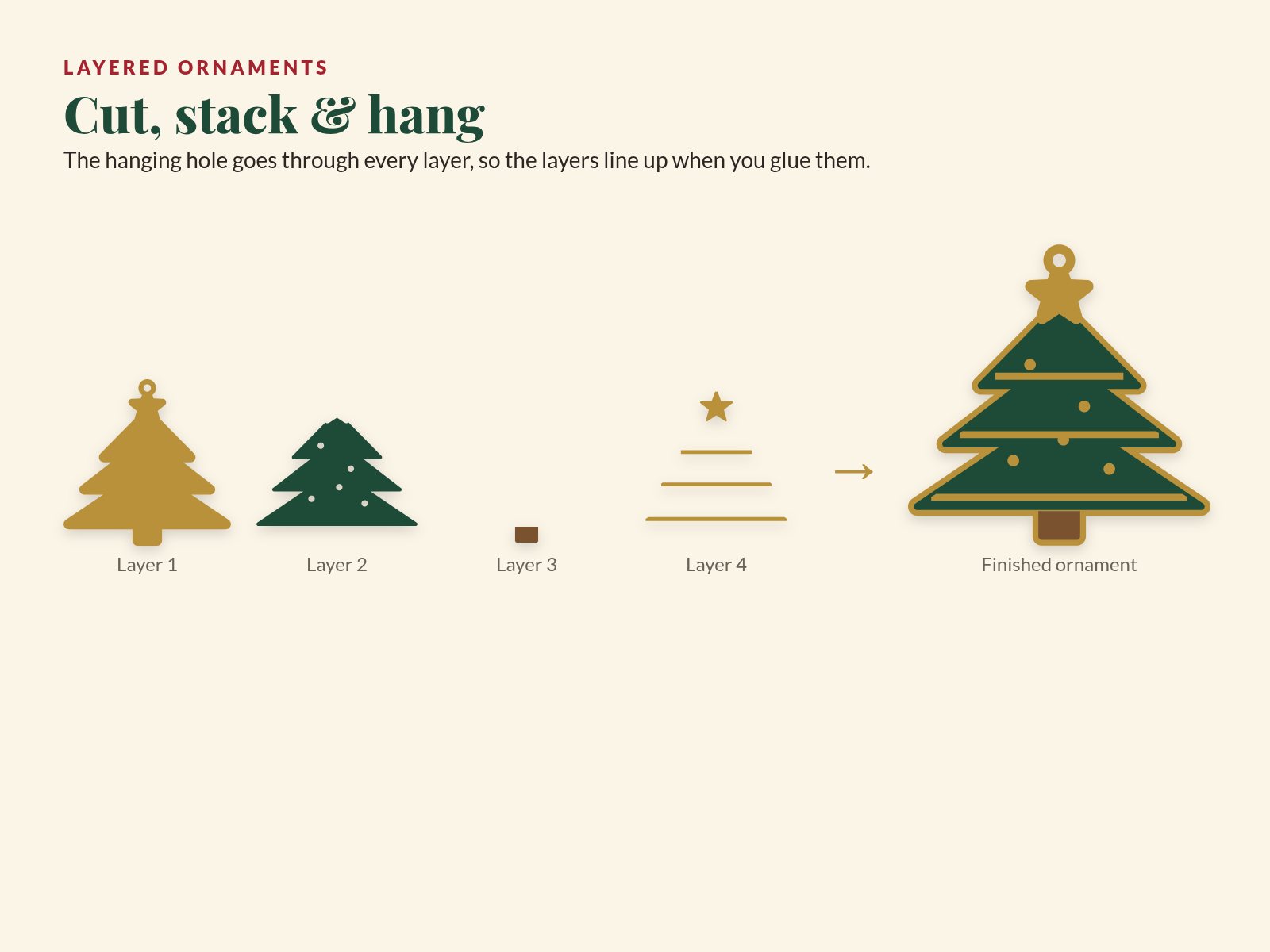
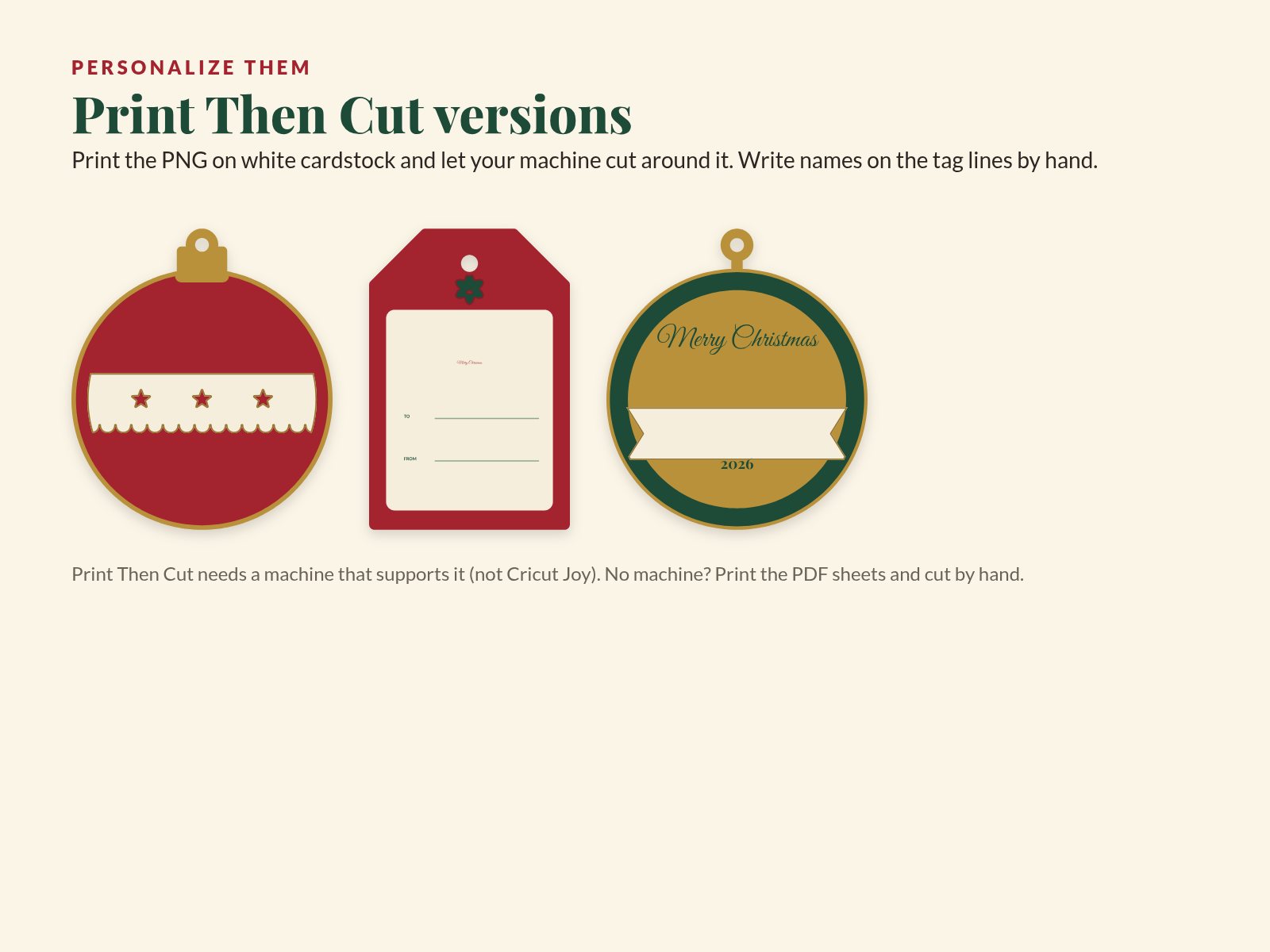
Make a tree full of keepsakes: nine layered ornaments in three to four layers each, with the hanging hole built into every layer so they line up perfectly after gluing. Add a name to the gift-tag and name-round ornaments for place settings, gift toppers or a family tradition.
What’s included
Works with Cricut Design Space (upload SVG for cut files, PNG for Print Then Cut) and with other cutting-machine software that opens SVG or DXF.
| Machine | Layered cut files (SVG) | Print Then Cut (PNG) | Notes |
|---|---|---|---|
| Cricut Maker, Maker 3 | Yes | Yes | Cut on a 12 × 12 in mat (max 11.5 × 11.5 in cut area) or longer mats. Mat sizes |
| Cricut Explore Air 2, Explore 3 | Yes | Yes | Print Then Cut works on white or light, matte materials. Sensor marks & materials |
| Cricut Joy | Yes | No | Cut-only: the original Joy is not capable of Print Then Cut (Print Then Cut machines). Its mats cut 4.25 × 6.25 in or 4.25 × 11.75 in (Joy Quick Start); every cut piece fits within 4.25 in on one side. |
| Cricut Joy Xtra | Yes | Yes | 8.5 in wide mats; supports Print Then Cut. Joy Xtra Quick Start |
| Silhouette (Studio Basic Edition) | Use the DXF files | PNG import + trace | Basic Edition opens DXF; SVG import needs Designer Edition or higher (file types). DXF files don’t keep their size, so resize to the size in the file name (import tips). |
| No machine | PDF hand-cut sheets (US Letter + A4) | Print at 100% and cut along the grey outlines with scissors or a craft knife. | |
Print Then Cut size: every printable piece stays inside the classic 6.75 × 9.25 in safe area (Print Then Cut size). Upload help: uploading images in Design Space.
Cricut, Cricut Joy and Design Space are trademarks of Cricut, Inc.; Silhouette and Silhouette Studio are trademarks of Silhouette America, Inc. They are named here only to describe compatibility. WarmPlanStudio is not affiliated with or endorsed by Cricut, Inc. or Silhouette America, Inc.
The same steps are in the one-page guide inside your download.
Look inside
Low-resolution previews, watermarked “PREVIEW”. Your download has the full-quality files without watermarks. Select any preview to enlarge it.
You may also like
Christmas + New Year’s Party Games Bundles and the Ornament Cut File Pack. Limited-time price.

112 cut files: layered cake toppers, a full banner alphabet, cupcake toppers, gift tags and favor tags.

14 games including Christmas trivia, holiday bingo with 30 unique cards and an Emoji Song Quiz.
FAQ & terms
Cricut Maker, Maker 3, Explore Air 2 and Explore 3 can use both the layered cut files and the Print Then Cut files. The original Cricut Joy can use the cut files only, because it is not capable of Print Then Cut (Cricut help); every cut piece fits its 4.25 in cut width. Cricut Joy Xtra supports Print Then Cut. Other cutting machines whose software opens SVG or DXF should work too.
Yes. Silhouette Studio Basic Edition opens the DXF files; SVG import needs Designer Edition or higher (Silhouette help). DXF files don’t remember their size, so after importing, set the width and height to the size in the file name (Silhouette help).
SVG (layered cut files), DXF (Silhouette Studio Basic and other software), PNG at 300 dpi with transparent backgrounds (Print Then Cut), and PDF hand-cut sheets in US Letter and A4, plus a one-page PDF guide. They come as ZIP files: unzip them on a computer before uploading.
No. This is a digital download only. No physical item, cardstock or machine is shipped.
Yes. Each file name ends with its designed size in inches. Keep the size lock on so the layers stay in proportion, and resize every layer of a design together. Going much smaller than designed makes fine details hard to cut and weed.
Yes. Design Space limits Print Then Cut images to about 6.75 × 9.25 in (newer versions allow up to 9.94 × 7.44 in on Letter paper for some machines). All of our Print Then Cut pieces fit inside 6.75 × 9.25 in. Cricut help: Print Then Cut size
65–100 lb (176–270 gsm) cardstock for the ornament layers; thread ribbon or twine through the hanging hole to hang them. For Print Then Cut, print on white matte cardstock or printable material so the machine can read the sensor marks (Cricut help).
These files are for personal use and for use with your own family, school, office or group, under the same terms as all WarmPlanStudio printables. Please don’t resell, share or redistribute the files or items made from them.
First unzip the download: Design Space can’t open ZIP files. Upload a single SVG (cut file) or PNG (Print Then Cut) through Upload › Upload Image. DXF uploads need the desktop app. If a layered design appears as one shape, select Ungroup. Cricut lists unsupported upload types here: Cricut help. Still stuck? Email warmplanstudio@gmail.com with the file name.
Because digital files can’t be returned once downloaded, all sales of digital downloads are final and refunds are not offered. But if something is wrong (a file won’t open, a file is missing, or you bought twice by mistake) please email us and we’ll make it right.
All prices are in US dollars (USD). Any applicable sales tax is shown at checkout.
For personal use and for use with your own family, school, office or group. Please do not resell, share or redistribute the files. This is a digital product; no physical item is shipped. Due to the nature of digital files, refunds are not offered, but we’ll always fix a problem with a file.
Cricut, Cricut Joy and Design Space are trademarks of Cricut, Inc.; Silhouette and Silhouette Studio are trademarks of Silhouette America, Inc. They are named here only to describe compatibility. WarmPlanStudio is not affiliated with or endorsed by Cricut, Inc. or Silhouette America, Inc.
© 2026 WarmPlanStudio. Content and designs are original works; all rights reserved.
Secure checkout by Stripe. Instant download after payment.